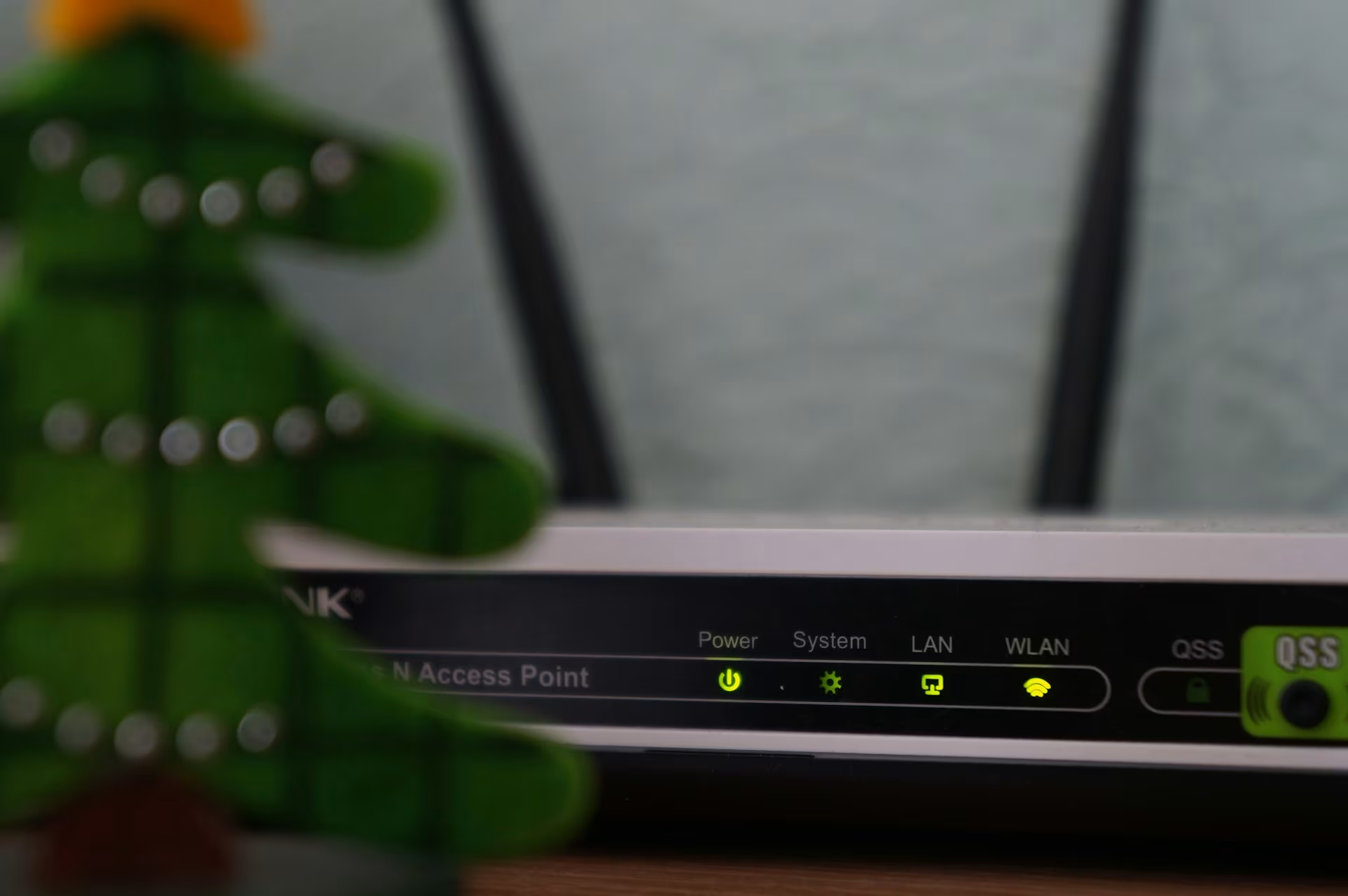
It’s late evening. I’m trying to wrap up my work while my kids are asleep, but my laptop keeps lagging. At first, I assume it’s my tired brain—or maybe my internet provider acting up again. But then, I notice something odd: my Wi-Fi light is blinking constantly, even though none of my devices should be using that much data. Turns out, someone nearby had managed to sneak into my network.
That day, I learned the hard way that leaving your Wi-Fi unsecured is like leaving your front door unlocked. In today’s world, where our productivity, entertainment, and even household gadgets depend on the internet, securing your Wi-Fi network is not optional—it’s essential.
If you’ve ever wondered how to secure your home Wi-Fi network in 2025, let me share not just expert steps, but also what I personally use and recommend. Don’t worry—you don’t need to be a techie. Even if you’re a complete beginner, these steps will protect your network, devices, and peace of mind.
1. Change the Default Router Username and Password
Most people leave their router settings exactly as the internet provider set them up. The problem? Hackers know the default login details of almost every router brand.
- Why it matters: Leaving defaults means anyone can access your Wi-Fi admin panel and change settings.
- What I do: The first time I set up a router, I always log in to its admin page (usually by typing something like 192.168.1.1 into the browser) and change both the username and password.
Pro Tip:
- Create a long, unique password—at least 12–16 characters with a mix of letters, numbers, and symbols.
- Don’t use the same password as your email or bank accounts.
2. Use WPA3 Encryption (Or At Least WPA2)
Encryption scrambles your Wi-Fi data so that even if someone intercepts it, they can’t read it. Older standards like WEP are outdated and unsafe.
- What to choose in 2025: WPA3 is the latest and strongest Wi-Fi security protocol. If your router and devices support it, always enable it. If not, stick to WPA2 (never WEP).
- How I set it up: In the Wi-Fi security settings of my router, I make sure WPA3-Personal is selected.
Keywords to note: Wi-Fi security, WPA3 encryption, secure home Wi-Fi.
3. Change Your Wi-Fi Network Name (SSID)
If your Wi-Fi name reveals the brand or model of your router, hackers get a head start.
- Why it matters: “Netgear123” or “TP-Link-456” basically tells a hacker what exploits to try.
- What I recommend: Pick a unique SSID that doesn’t give away your identity or location. I once used a funny name like “404 Network Not Found”—but avoid using your name, address, or apartment number.
4. Create a Strong Wi-Fi Password
This is your first line of defense. A weak Wi-Fi password is like leaving your door locked with a paperclip.
- My rule of thumb: At least 16 characters, mixing uppercase, lowercase, numbers, and special characters.
- Easy trick: Use a passphrase. For example: TeaAt9!Books&Stars2025. It’s strong but easier to remember.
5. Enable the Router Firewall
Most modern routers come with a built-in firewall. You just need to enable it.
- Why it matters: Firewalls block suspicious incoming connections, preventing hackers from easily accessing your devices.
- How I use it: In my router’s advanced settings, I make sure the firewall toggle is ON.
6. Keep Your Router Firmware Updated
Routers, like computers, have software (firmware) that needs updating. Ignoring updates means leaving your home Wi-Fi open to known vulnerabilities.
- What I do: Every month, I log in to my router and check for firmware updates. Many modern routers also allow auto-updates—if available, enable it.
- Tip: If your router is older than 5 years and doesn’t get updates anymore, consider replacing it.
7. Disable Remote Management
Remote management allows you to log into your router from anywhere, but it’s also a doorway for hackers.
- Why I always disable it: Unless I really need remote access, I turn it off. I’d rather log in from home directly than risk exposing my admin panel online.
8. Use a Guest Network
Do you have visitors who ask for your Wi-Fi password? Or maybe smart home devices like bulbs and speakers that connect to the internet?
- Why it matters: Guest devices can be less secure. If one is compromised, it could infect your main network.
- What I do: I create a separate “Guest Wi-Fi” from the router settings. This way, my main devices (laptop, phone, etc.) remain isolated.
Pro Tip: Limit the bandwidth of guest networks if your router allows it—this prevents freeloaders from slowing down your internet.
9. Hide Your Network (Optional Step)
Most people leave their Wi-Fi visible, but you can actually hide your SSID so it doesn’t appear in the list of available networks.
- How I use it: I once enabled this for extra security, but it can be inconvenient when connecting new devices. I now use it selectively—especially for my work Wi-Fi network.
10. Turn Off Wi-Fi When Not in Use
This might sound extreme, but when I’m traveling or away for days, I turn off the router.
- Why it helps: Hackers can’t break into a network that’s not even on. Plus, it saves electricity.
11. Use a VPN for Added Security
A VPN (Virtual Private Network) encrypts your internet traffic, adding an extra layer of protection—especially useful if you sometimes access your Wi-Fi remotely.
- How I use it: On my personal devices, I keep a reliable VPN running. It ensures even if my Wi-Fi was compromised, my data stays private.
12. Monitor Connected Devices
Most routers now have a feature to show all devices connected.
- Why I check weekly: Once, I found an unknown device using my Wi-Fi. A quick password change kicked it out immediately.
- How to do it: Log in to your router dashboard and look for a section like “Connected Devices” or “DHCP Clients.”
13. Position Your Router Smartly
Did you know router placement can also improve security?
- Why it matters: If your Wi-Fi signal bleeds too far outside your home, neighbors or strangers might try connecting.
- What I do: I place my router in the center of the house so coverage is good inside, but not leaking too far outside.
14. Upgrade to a Modern Router
If your router is more than 5 years old, chances are it doesn’t support WPA3, automatic updates, or advanced security features.
- My experience: Upgrading to a new router in 2024 not only boosted my internet speed but also gave me peace of mind with built-in protections.
Read more Zens Liberty Wireless Charger Review: Innovative Design, Reliable Performance
Secure Your Network
Securing your home Wi-Fi in 2025 doesn’t require advanced technical skills. With just a few changes—like strong passwords, WPA3 encryption, and regular updates—you can protect your data, devices, and privacy.
I personally follow these steps because I know how frustrating and risky it is to leave things unprotected. And trust me, the relief of knowing your home network is secure is worth the few minutes it takes.
So go ahead—pick one step from above and start today. Bit by bit, you’ll build a shield around your digital home. Your productivity, privacy, and peace of mind deserve nothing less.
Frequently Asked Questions About Securing Home Wi-Fi in 2025
1. How do I know if someone is using my Wi-Fi?
You can check your router’s connected devices list (usually in the admin panel). If you spot unknown devices, change your Wi-Fi password immediately and restart the router.
2. Is WPA3 really better than WPA2?
Yes. WPA3 offers stronger encryption and better protection against brute-force attacks. If both your router and devices support WPA3, always enable it. If not, WPA2 is still secure—but never use WEP.
3. What is the safest Wi-Fi password I can use?
The safest Wi-Fi password is at least 16 characters long, mixing uppercase, lowercase, numbers, and symbols. A passphrase like Summer!Sky&Books2025 is strong and easier to remember.
4. Should I use a VPN at home?
A VPN isn’t always necessary at home if your Wi-Fi is secure, but it adds an extra layer of privacy by encrypting your online activity. I personally keep a VPN on my laptop and phone for extra safety.
5. Can my smart home devices make my Wi-Fi less secure?
Yes. Smart devices like bulbs, speakers, or cameras can be easy targets for hackers. To protect your main devices, place IoT gadgets on a separate guest network.